Have you ever struggled when your mouse stops moving or your keyboard freezes? These are common issues with computer input devices. Input devices allow us to interact with computers—typing, clicking, or speaking commands. Understanding these tools can make using a computer intuitive and enjoyable. Whether you’re learning basic computing or aiming to work efficiently, knowing input devices is essential.
Read More: Ultimate Guide to Joystick Types: Discover, Master, and Elevate Your Gaming Experience
What Are Input Devices?
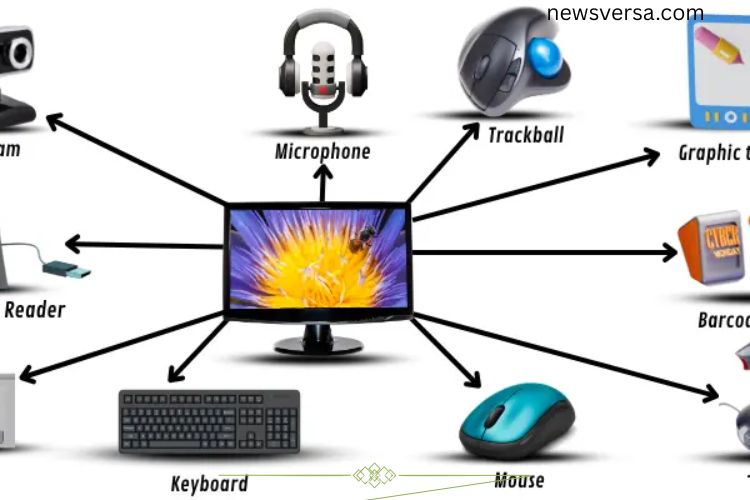
Input devices are tools that let us send data and instructions to a computer. They translate human actions—like typing, clicking, or speaking—into signals the computer can process. Common examples include keyboards, mice, and microphones. These devices form the bridge between you and the computer, making it responsive to your commands.
How Do Input Devices Work?
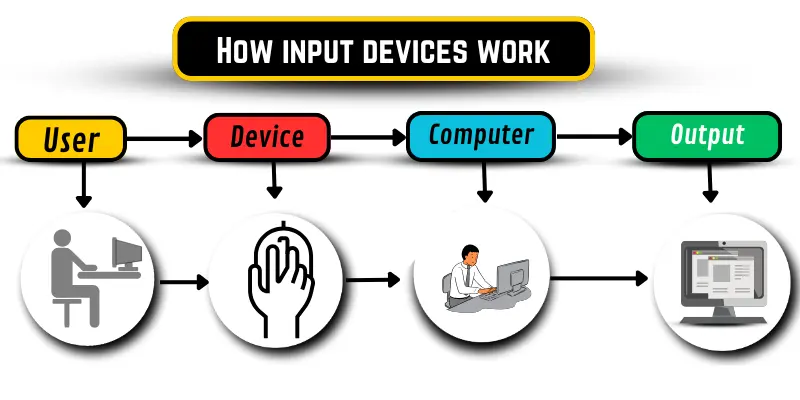
Input devices function by converting user actions into digital signals:
- User Action – You press a key, click a mouse, or speak into a microphone.
- Signal Transmission – The device sends data to the computer.
- Computer Processing – The computer interprets the signal as a command.
- Response – The computer performs the requested action, such as displaying a letter, opening a program, or moving the cursor.
This process happens instantly, enabling seamless interaction with your device.
Types of Input Devices
Input devices can be grouped into several categories, each designed for a specific purpose. Here’s a closer look:
Traditional Input Devices
Keyboard
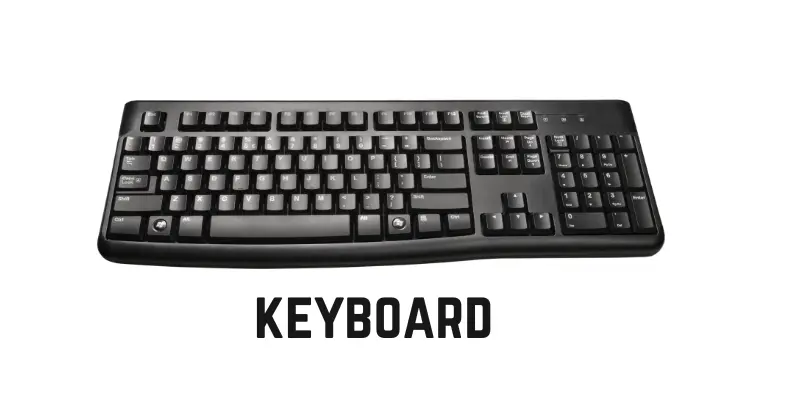
A keyboard allows users to input letters, numbers, and symbols into a computer.
Importance:
- Enables writing emails, assignments, and documents
- Supports shortcuts for faster operations
- Helps search and navigate information
Types:
- Wired Keyboard – connected via cable
- Wireless Keyboard – connects through Bluetooth
- Ergonomic Keyboard – designed for comfort
Mouse
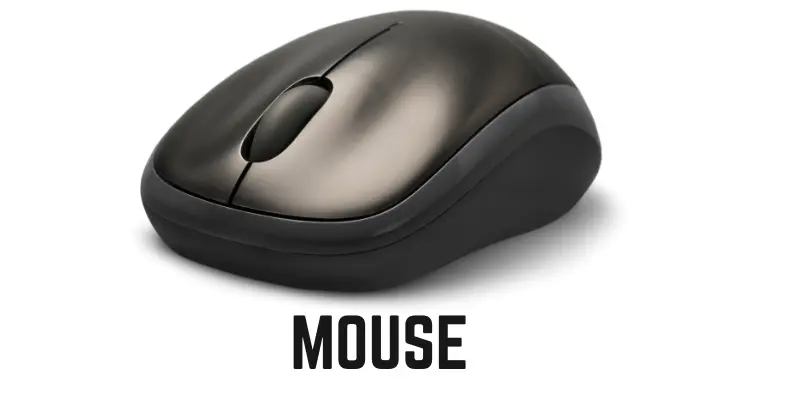
A mouse moves the cursor and allows clicking to interact with programs.
Importance:
- Smooth navigation of on-screen content
- Facilitates selecting, dragging, and opening items
- Useful for gaming and graphic tasks
Types:
- Wired Mouse
- Wireless Mouse
- Optical Mouse – uses light sensors for movement
Pointing Devices
Pointing devices control the cursor without a standard mouse.
Trackball
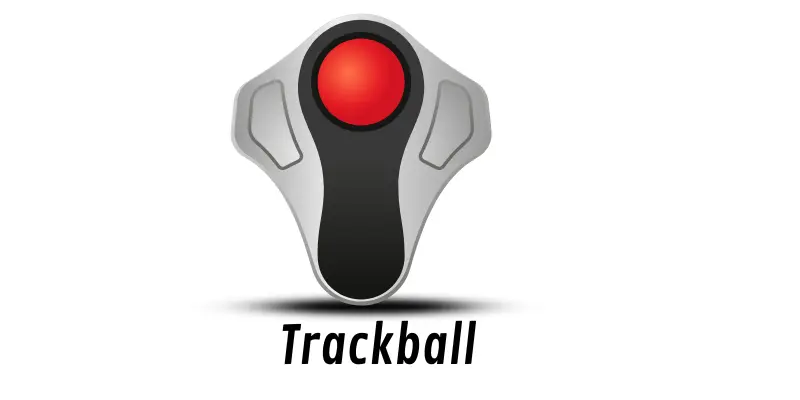
A trackball works like an inverted mouse; rolling the ball moves the cursor.
Importance:
- Saves space on desks
- Easier for users with limited hand movement
- Supports scrolling and clicking
Types: Mechanical, Optical, Wireless
Touchpad
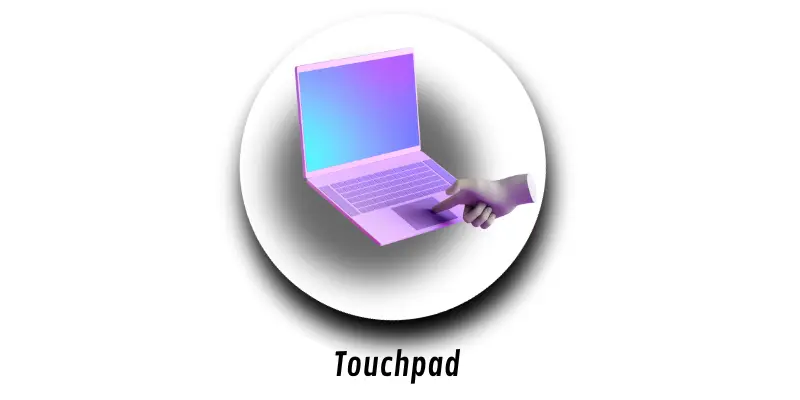
A touchpad is common on laptops. Sliding fingers on it moves the cursor, and tapping clicks.
Importance:
- No additional hardware required
- Supports multi-touch gestures like scrolling and zooming
- Ideal for portable devices
Types: Standard, Multi-Touch, Clickpad
Scanning and Reading Devices
These devices capture external data and send it to the computer.
Barcode Scanner
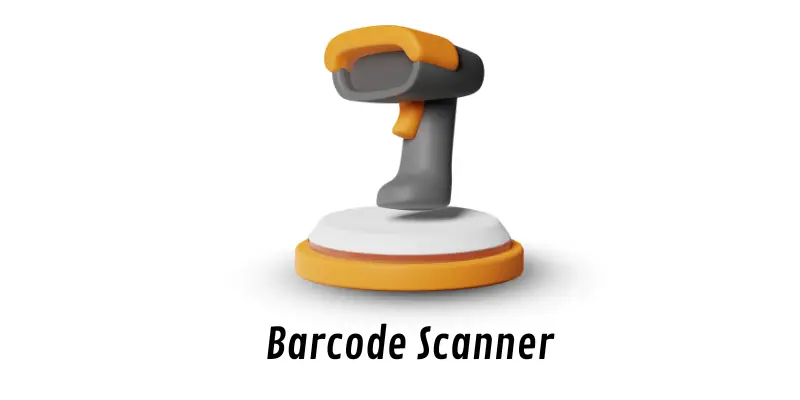
Scans product barcodes to retrieve information quickly.
Importance:
- Speeds up checkout and inventory tracking
- Useful in retail and libraries
- Types: Laser, CCD, Imager
- Optical Mark Reader (OMR)
Detects marks on papers, such as multiple-choice test sheets.
Importance:
- Efficient grading and survey collection
- Reduces human error
Types: Sheet-fed, Roll-fed, Handheld
Audio and Video Input Devices
Microphone
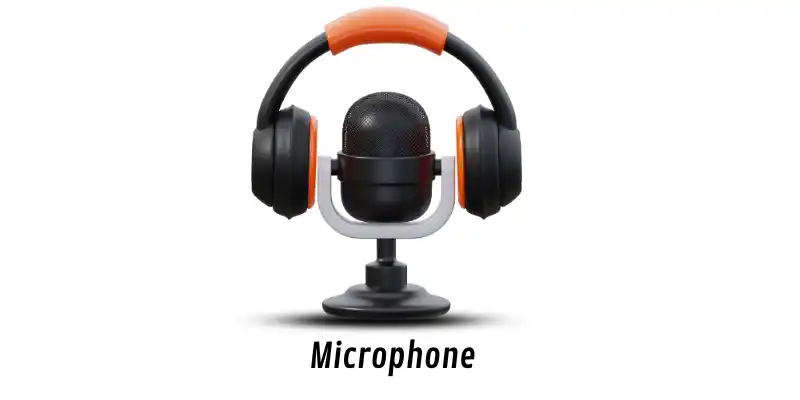
Captures sound and converts it into digital signals.
Importance:
- Records voice for videos or audio content
- Supports voice commands
Types: Wired, Wireless, USB
Webcam
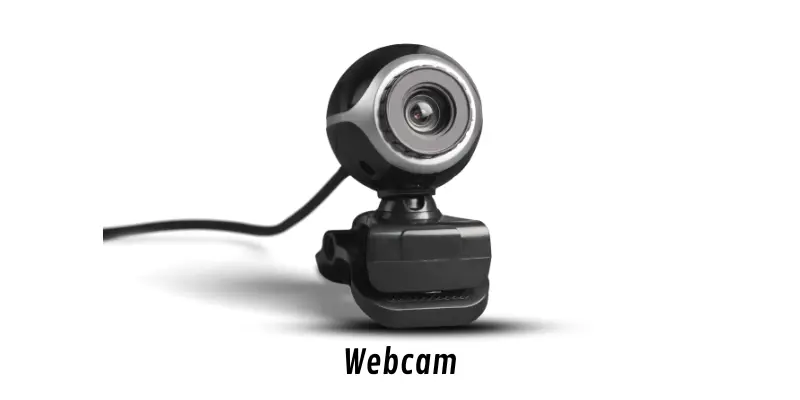
A webcam captures video or images for online communication.
Importance:
- Enables video calls and streaming
- Useful for content creation
Types: Built-in, External, Wireless
Specialized Input Devices
Specialized devices serve unique purposes, such as gaming or digital art.
Joystick
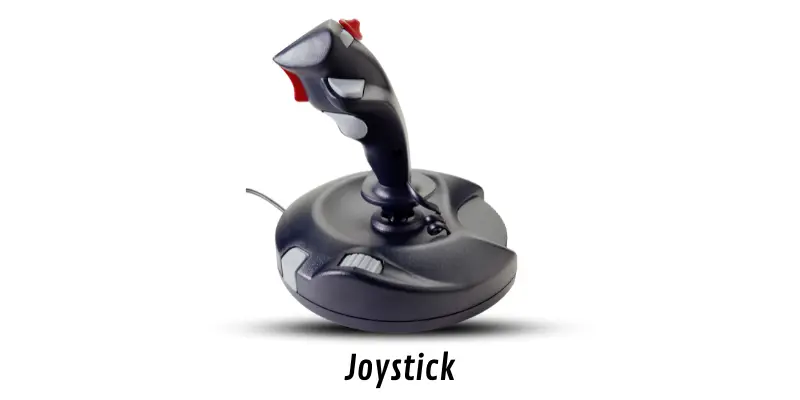
Used for games or controlling simulations.
Importance:
- Enhances gaming experience
- Allows precise movement in programs
Types: Analog, Digital, Flight Stick
Graphic Tablet
Allows users to draw or design digitally with a pen.
Importance:
- Ideal for artists and designers
- Offers precision and creativity
Types: Wacom, Huion, XP-Pen
Advantages and Disadvantages of Input Devices
Advantages:
- Simple to use and learn
- Improve speed and accuracy
- Support gaming, drawing, and online learning
- Allow voice and touch control
Disadvantages:
- Can be costly
- Some require training
- Take up space and need maintenance
- Depend on electricity or batteries
- May slow down with age or wear
Frequently Asked Questions:
What are computer input devices?
Computer input devices are tools that allow users to send data and commands to a computer, such as keyboards, mice, microphones, and webcams.
How do input devices work?
Input devices convert user actions—like typing, clicking, or speaking—into digital signals that the computer processes to perform tasks.
Which input device is best for beginners?
For most beginners, a keyboard and mouse are the easiest to start with, as they provide straightforward navigation and control.
What are specialized input devices?
Specialized input devices, such as joysticks and graphic tablets, are designed for specific tasks like gaming, digital drawing, or accessibility needs.
Can input devices improve productivity?
Yes, using the right input devices can enhance typing speed, accuracy, creativity, and overall computer efficiency.
What is the difference between traditional and modern input devices?
Traditional devices include keyboards and mice, while modern devices include touchpads, voice input, and motion-sensing controllers.
How do I maintain input devices?
Regular cleaning, proper storage, avoiding spills, and updating device drivers help keep input devices functioning efficiently.
Conclusion
Understanding computer input devices is essential for anyone looking to use technology efficiently. From keyboards and mice to specialized tools like graphic tablets and joysticks, each device plays a unique role in how we interact with computers. Mastering these devices enhances productivity, creativity, and overall ease of use. By choosing the right input tools and learning how to use them effectively, beginners and experienced users alike can enjoy faster, more accurate, and more enjoyable computing experiences.